Local Storage & Session Storage
https://www.smashingmagazine.com/2010/10/local-storage-and-how-to-use-it/
Using local storage in modern browsers is ridiculously easy. All you have to do is modify the localStorage object in JavaScript. You can do that directly or (and this is probably cleaner) use the setItem() and getItem() method:
localStorage.setItem('favoriteflavor','vanilla');Copy
If you read out the favoriteflavor key, you will get back “vanilla”:
var taste = localStorage.getItem('favoriteflavor');
// -> "vanilla"
Copy
To remove the item, you can use — can you guess? — the removeItem() method:
localStorage.removeItem('favoriteflavor');
var taste = localStorage.getItem('favoriteflavor');
// -> null
That’s it! You can also use sessionStorage instead of localStorage if you want the data to be maintained only until the browser window closes.
Working Around The “Strings Only” Issue #
One annoying shortcoming of local storage is that you can only store strings in the different keys. This means that when you have an object, it will not be stored the right way.
You can see this when you try the following code:
var car = {};
car.wheels = 4;
car.doors = 2;
car.sound = 'vroom';
car.name = 'Lightning McQueen';
console.log( car );
localStorage.setItem( 'car', car );
console.log( localStorage.getItem( 'car' ) );
Trying this out in the console shows that the data is stored as [object Object] and not the real object information:
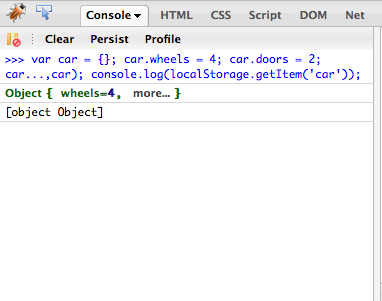
You can work around this by using the native JSON.stringify() and JSON.parse() methods:
var car = {};
car.wheels = 4;
car.doors = 2;
car.sound = 'vroom';
car.name = 'Lightning McQueen';
console.log( car );
localStorage.setItem( 'car', JSON.stringify(car) );
console.log( JSON.parse( localStorage.getItem( 'car' ) ) );
Session storage
https://developer.mozilla.org/en-US/docs/Web/API/Window/sessionStorage
// Save data to sessionStorage
sessionStorage.setItem("key", "value");

// Get saved data from sessionStorage
let data = sessionStorage.getItem("key");

// Remove saved data from sessionStorage
sessionStorage.removeItem("key");

// Remove all saved data from sessionStorage
sessionStorage.clear();
Cookies
https://developer.mozilla.org/en-US/docs/Web/API/Document/cookie
// Note that we are setting `SameSite=None;` in this example because the example
// needs to work cross-origin.
// It is more common not to set the `SameSite` attribute, which results in the default,
// and more secure, value of `SameSite=Lax;`
document.cookie = "name=oeschger; SameSite=None; Secure";
document.cookie = "favorite_food=tripe; SameSite=None; Secure";

function showCookies() {
  const output = document.getElementById("cookies");
  output.textContent = `> ${document.cookie}`;
}

function clearOutputCookies() {
  const output = document.getElementById("cookies");
  output.textContent = "";
}<button onclick="showCookies()">Show cookies</button>
<button onclick="clearOutputCookies()">Clear</button>
<div>
<code id="cookies"></code>
</div>
// Note that we are setting `SameSite=None;` in this example because the example
// needs to work cross-origin.
// It is more common not to set the `SameSite` attribute, which results in the default,
// and more secure, value of `SameSite=Lax;`
document.cookie = "test1=Hello; SameSite=None; Secure";
document.cookie = "test2=World; SameSite=None; Secure";

const cookieValue = document.cookie
  .split("; ")
  .find((row) => row.startsWith("test2="))
  ?.split("=")[1];

function showCookieValue() {
  const output = document.getElementById("cookie-value");
  output.textContent = `> ${cookieValue}`;
}

function clearOutputCookieValue() {
  const output = document.getElementById("cookie-value");
  output.textContent = "";
}